

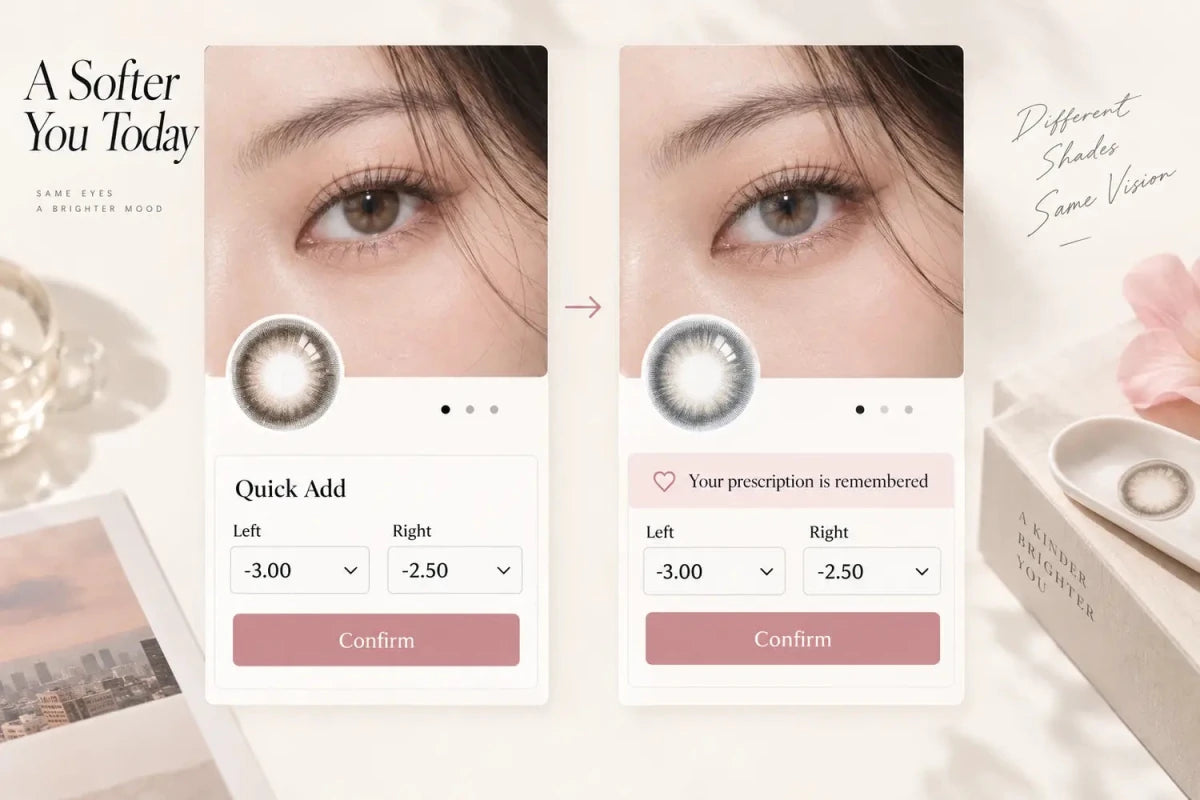
A quick-add form should remember the customer’s last confirmed left- and right-eye prescription entries, then prefill only values that exist in the next product’s compatible option set. The form must label them as previous settings, keep each eye separate and require confirmation before adding. It should never round a power, invent a missing CYL/AXIS combination, or imply that another model is interchangeable.

Remember the Last Confirmed Eye-Specific Values
The useful memory is the set the shopper actively confirmed—not an unfinished dropdown state. For a standard spherical product, that may be left power and right power. For a toric order, it can include the exact values entered for each eye, such as sphere, cylinder and axis, while preserving their eye assignment.
Display a small message such as “Previous lens settings applied—please confirm.” Every prefilled field should remain editable. A one-click “Clear” control should remove the remembered set without forcing the customer to erase fields individually.
| Field | Remember? | Required behavior |
|---|---|---|
| Left / right power | Yes, after confirmation | Keep each eye separate and prefill only exact available values |
| Left / right CYL and AXIS | Yes for compatible toric forms | Validate the complete combination for each eye |
| Color or product | No | Use the destination product selected by the shopper |
| Quantity and promotion choice | Usually no | Require a fresh choice because packaging and offers vary |
| Production time | No | Use the current product’s own stated timing |
Run Compatibility Before Prefilling
The next product may use different field names, ranges or combinations. The storefront should normalize equivalent labels—such as Power and SPH for a spherical field—then confirm that every remembered value exists in the destination form. If both left and right powers are available, prefill them and focus the confirmation step. If only one value exists, prefill that eye and clearly mark the unavailable field for a new selection.
The check must use the actual selectable combinations, not a broad product-page range. A page may advertise sphere values from 0.00 to −8.00 while a particular cylinder-axis combination is unavailable. Only a valid destination combination should be shown as ready to confirm.
Never Hide a Mismatch or Substitute a Nearby Option
If a remembered value is not offered, leave the field unselected and explain: “Previous value −3.25 is unavailable for this product.” Do not silently change it to −3.00, copy the other eye, or replace a toric product with a non-toric version for the preferred shade.
The remembered settings are a convenience record, not a new prescription, fit recommendation or proof that another lens model is suitable. Product identity and required specifications still need to be checked. That distinction should be visible in the confirmation message rather than buried in a long policy block.
Use a Stricter Rule for Toric Products
Toric ordering depends on the complete set for each eye and the exact prescribed model. A safe quick-add flow should group the left-eye fields together and the right-eye fields together, validate sphere, cylinder and axis as a combination, and show an eye-by-eye summary before Add to Cart.
When moving to another toric shade or model, previously entered values may be displayed for comparison only after all exact values exist. The customer must still confirm the product and full combination. When moving from toric to spherical, do not drop CYL and AXIS silently; explain that the destination product has a different option structure and require a fresh choice.
Keep the Desktop and Mobile Confirmation Compact
Desktop
Place the remembered-settings notice above two adjacent left/right columns. Keep the confirmation button close to the fields so the pointer does not travel across a wide empty card. Show only the options required by that product.
Mobile
Use two columns when the labels remain readable; otherwise group each eye in a compact section without long empty gaps. Keep the notice to one or two lines, place Clear and Edit near the values, and use one full-width confirmation button. Do not open a tall option list that traps the page in an inner scrollbar.
After the item is added, the visible quick-add form may reset while the last confirmed settings remain available for the next compatible product. This prevents accidental duplicate additions and still saves re-entry work.
Recommended Flow
- Customer confirms options on product A.
- The storefront saves the eye-specific values for the current shopping session.
- Customer opens product B.
- The form checks field type, exact value availability and valid combinations.
- Compatible values appear with a previous-settings notice; mismatches stay unselected.
- Customer reviews the summary and confirms Add to Cart.
Frequently Asked Questions
Should quick add place the next item in the cart automatically?
No. It should prefill compatible values and require an explicit confirmation so the customer can verify the product, eyes and quantities.
Should the form remember color and quantity?
Usually not. Color belongs to the newly chosen product, while package contents and promotion quantities can differ between products.
What happens when one remembered power is unavailable?
Keep that field unselected, name the unavailable previous value and require a new valid choice. Do not round or substitute it.
Can toric settings be copied to a spherical product?
No. The destination has a different option structure. The form should not silently discard cylinder and axis.
How long should remembered values remain?
A current shopping-session default is a clear, privacy-conscious starting point. Give the shopper a visible Clear control and avoid presenting old values as current without confirmation.
Should the same memory work on the full product page?
Yes. Quick add and the product page should use the same compatibility and confirmation rules so moving between them does not create conflicting values.
Editorial note: Remembered values reduce repeated data entry. They must remain transparent, editable and subordinate to exact product availability and prescription requirements.